This article contains affiliate links. If you buy through them we may earn a commission at no extra cost to you. As an Amazon Associate I earn from qualifying purchases. Learn more.
Most account takeovers don’t involve genius hackers. They happen because a password was short, guessable or reused on a site that was breached. A few simple habits close most of those doors.
Length matters more than complexity
Every extra character multiplies the number of possible passwords. A long random password, or a passphrase made of several random words, is much harder to crack than a short password with a few symbols swapped in (“P@ssw0rd!” is one of the first things attackers try). Current guidance from security agencies generally favours longer passwords over forced complexity rules.
Use our Password Generator to create a random password of 16 characters or more. It runs entirely in your browser using a cryptographically secure random generator.
Never reuse passwords
When a website is breached, attackers try the leaked email and password combinations on other sites. This is called credential stuffing, and it is why one weak site can compromise your email, bank or business accounts. Every account needs its own unique password.
Let a password manager do the remembering
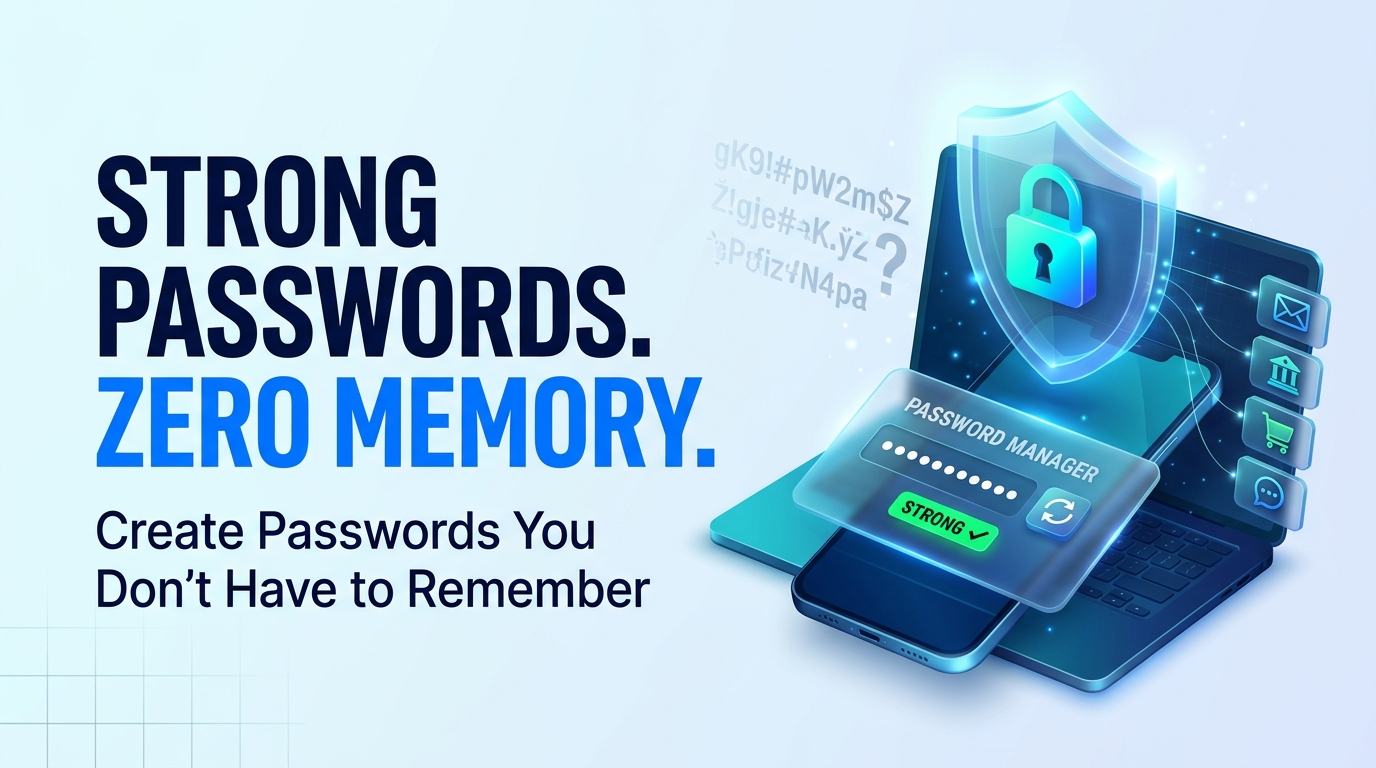
Nobody can remember dozens of unique random passwords. A reputable password manager generates, stores and fills them for you, so you only need to remember one strong master password. Many also warn you about reused or breached passwords.
Turn on two-factor authentication
Two-factor authentication (2FA) adds a second step – such as an authenticator app code or a hardware security key – so a stolen password alone isn’t enough. Start with your email account, because it can be used to reset every other password, then enable 2FA on banking, cloud storage and business tools.
A simple plan for this week
- Install a password manager on your computer and phone.
- Change your email password to a long, unique one and turn on 2FA.
- Update passwords for your most important accounts, then work through the rest over time.
- Never share passwords by email or chat – use your password manager’s sharing feature instead.
Go further: add a hardware security key
A strong password protects you against guessing. A hardware security key protects you against phishing: even if someone tricks you into typing your password on a fake site, they cannot sign in without the physical key. Most major services, including Google, Microsoft, Apple and leading password managers, support them.
- Yubico Security Key C NFC – an affordable FIDO2/passkey key with USB-C and NFC for phones. Enough for most personal accounts.
Check price on Amazon - YubiKey 5C NFC – adds smart card, one-time password and OpenPGP support for business and technical users.
Check price on Amazon
Buy two keys and register both on each account, keeping one somewhere safe as a backup. Check which connector your devices use (USB-C or USB-A) before ordering.
Our articles are researched, fact-checked and reviewed by a human editor before publication. Spotted an error? Let us know. Read our editorial policy.